
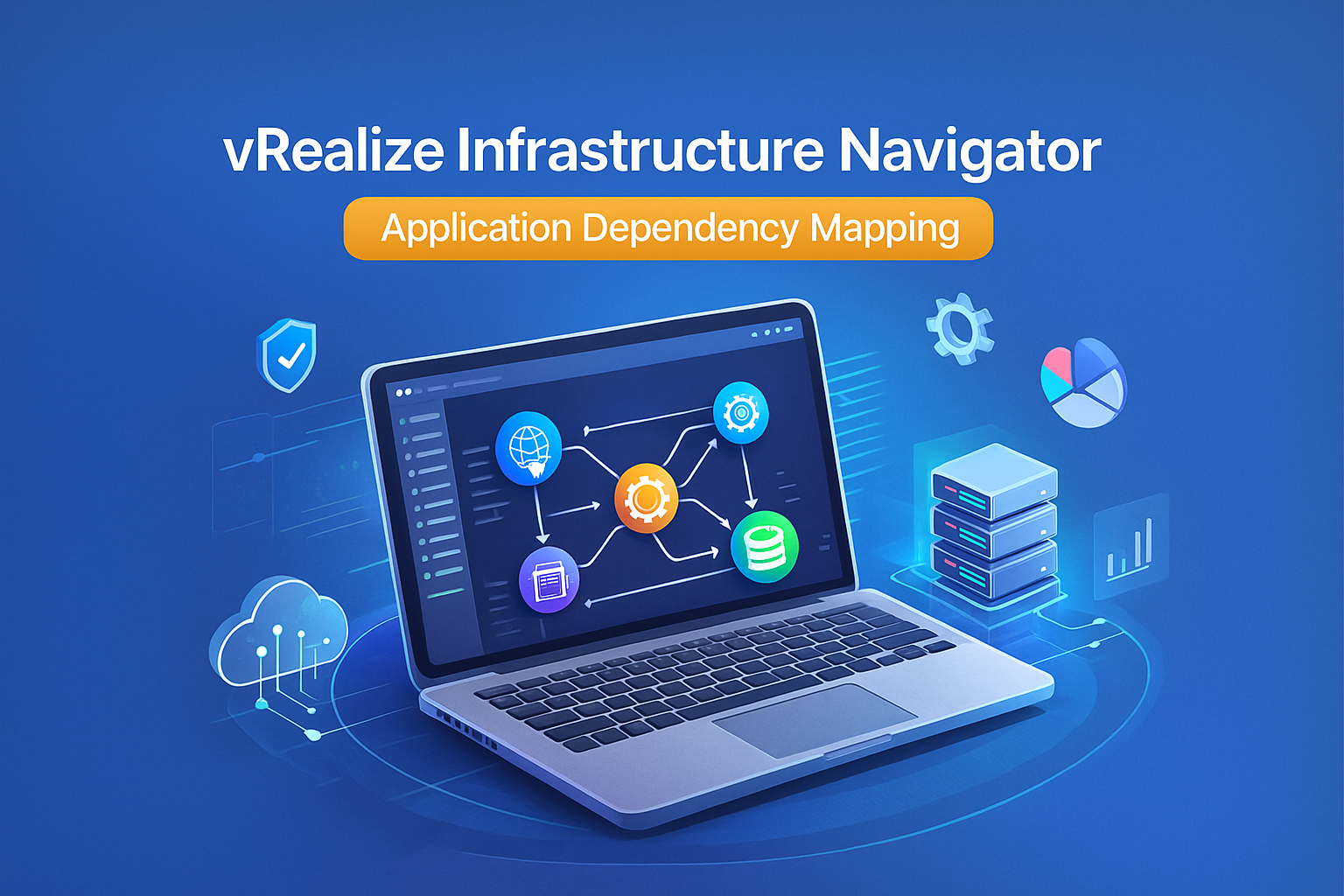
Virtual environments can be very large, many virtual machines talk to each other in different ways, it is hard to see how these machines and applications are linked, VMware created a tool called vRealize Infrastructure Navigator or VIN, the goal of VIN was to show how applications connect to each other inside a VMware vSphere environment
VIN is no longer active today but many people still want to understand how it worked, the ideas behind VIN are still used in modern VMware tools, this guide explains VIN in simple language, it covers what it did how it worked why people used it and what tools replaced it Tatasec.org
What Is vRealize Infrastructure Navigator
vRealize Infrastructure Navigator was a VMware tool made for vCenter, the tool looked inside virtual machines and discovered the applications inside them, it also showed how these applications communicated with one another, this helped system engineers understand the full map of their environment, VIN saved time and reduced mistakes because everything was visible in one place
Main Features of VIN
VIN included several useful features that made daily work easier for administrators, here are the most important ones
Automatic Application Discovery
VIN could find applications inside virtual machines without installing agents, it used the following methods
Data from VMware Tools inside each virtual machine
Network and port scanning
Application fingerprints
Guest operating system inspection
VIN could detect common services such as web servers database servers and application servers
Dependency Mapping
VIN created a map of how applications and virtual machines talked to each other, it showed
Incoming network connections
Outgoing connections
Port numbers
Protocols
Multi tier links such as web to app to database
This allowed teams to understand every relationship in the environment
Real Time Updates
VIN discovered changes on a regular schedule, when something changed in the environment the map also changed, this removed the need for manual documentation
Integration with VMware Tools
VIN worked with several VMware products such as
vCenter
vSphere Web Client
vRealize Operations Manager
vRealize Automation
Site Recovery Manager
These integrations helped teams use VIN data in many different workflows
Architecture of VIN
VIN was made of different parts, this table explains each part in simple words
VIN Architecture Table
| Component | Description |
|---|---|
| VIN Appliance | A virtual machine that performs discovery and analysis |
| vCenter Plugin | Shows VIN results inside the vSphere Web Client |
| Discovery Engine | Looks inside virtual machines and finds applications |
| Data Store | Keeps the information that VIN discovers |
| Integration Layer | Sends VIN data to vRealize Operations |
How VIN Worked
VIN used several methods to discover and map applications in a vSphere environment
Guest Operating System Inspection
VIN collected information from VMware Tools, this included
Running processes
Open network ports
Installed services
Configuration files
Network and Port Scanning
VIN scanned network ports to see which services were active, it checked for listening ports and active sessions
Application Fingerprints
VIN used a library of known patterns to identify applications, it looked at
Known service names
Common port numbers
File paths
Process names
With these fingerprints VIN could find many well known applications automatically
How to Deploy and Configure VIN
Learning how VIN was deployed helps people understand how VMware tools work today
Requirements Before Installation
VIN needed the following items to work correctly
A supported version of vSphere and vCenter
Healthy VMware Tools inside the virtual machines
Good DNS and time settings
Enough CPU and memory resources
Administrator access in vCenter
Deployment Steps
These were the basic steps to install VIN
Import the VIN appliance file using the Deploy OVF Template option
Select storage and network for the appliance
Set an IP address and start the appliance
Connect the appliance to vCenter
Enable the plugin inside vCenter
Setting Up Credentials
VIN needed access to virtual machines to gather application data, administrators provided
Windows domain credentials
Linux SSH credentials
Without these credentials the discovery process could not run fully
Using VIN in vSphere
Once VIN was installed it became part of the vSphere Web Client
Interface Features
The following items appeared inside the vSphere interface
Application Dependencies view
Service maps
Flow diagrams
Multi tier charts
Understanding Dependency Maps
Dependency maps used simple symbols, they showed
Nodes that represent virtual machines or services
Lines that represent network connections
Direction of traffic
Port and protocol data
These maps helped people see the full flow of an application
Common Use Cases
The table below lists the most common tasks where VIN was useful
Use Case Table
| Use Case | Description |
|---|---|
| Migration Planning | Find all links before moving a virtual machine |
| Change Management | Check impact before updates or patches |
| Troubleshooting | Trace the source of failures |
| Disaster Recovery | Identify machines that need to fail over together |
| Compliance | Provide maps for audits |
| Security | Find unknown or risky services |
Security and Compliance Advantages
Even though VIN was not a security tool it provided strong security support
Finding Unknown Services
VIN often revealed services that teams did not know existed, this reduced shadow IT risk
Better Compliance Evidence
VIN maps helped with many standards such as
PCI DSS
HIPAA
ISO 27001
SOX
Auditors could quickly understand how applications worked
Support for NSX Micro Segmentation
It was useful in NSX projects because it helped plan firewall rules, it showed which virtual machines needed to talk to each other, this made it easier to create least privilege access rules
VIN and vRealize Operations Manager
It worked very well with vRealize Operations Manager also known as vROps
What vROps Gained from VIN
VIN added application context to vROps. It helped vROps
Detect real causes of issues
Understand which virtual machines were linked
Improve performance analysis
Build better risk reports
Workflows Improved by VIN
Here is a table that shows how VIN made vROps tasks easier.
Workflows Table
| Workflow | VIN Value |
|---|---|
| Root Cause Analysis | Shows which systems are linked to a failing machine |
| Capacity Planning | Finds services that depend on busy machines |
| Risk Analysis | Highlights which apps are impacted by failures |
| Maintenance Planning | Predicts which apps will be affected by shutdowns |
Limitations of VIN
VIN was useful but it had limits
Technical Limits
Weak support for cloud workloads
No deep view into encrypted traffic
Depended on VMware Tools
Limited ability with new application types
Operational Limits
Required updated credentials
Maps could become outdated
Could struggle in very large data centers
No support for containers
End of VIN and New VMware Tools
VMware retired VIN when new cloud and container technologies became popular, VMware replaced VIN with more powerful solutions
Reasons for Retirement
Rise of hybrid cloud
Growth of Kubernetes
Need for deeper analysis
Overlap with new VMware tools
Modern VMware Replacements
Today VMware offers these modern tools
VMware Aria Operations
A tool that shows infrastructure and application health
VMware Aria Operations for Networks
A tool that maps flows and helps design secure networks
VMware Aria Operations for Applications
A tool that focuses on cloud native app visibility
Other Modern Tools
Many companies now use these tools for dependency mapping
Dynatrace
AppDynamics
Datadog
SolarWinds
ServiceNow Discovery
New Relic
These tools can handle virtual machines cloud systems and containers
Best Practices for Application Mapping
The lessons from VIN are still useful today.
Improve Discovery Quality
Keep VMware Tools updated
Use clean VM naming
Keep OS and network settings healthy
Use Maps in Daily Work
Teams should use dependency maps for
Planning changes
Updating CMDB records
Solving incidents
Designing networks
Work Together Across Teams
Dependency maps help
Application teams
System teams
Network teams
Security teams
Shared visibility reduces mistakes and downtime
Frequently Asked Questions
What is vRealize Infrastructure Navigator?
vRealize Infrastructure Navigator is a VMware tool that discovers applications inside virtual machines and shows how they connect to each other, it helps you see the full map of your virtual environment
How does vrealize infrastructure navigator find applications?
VIN uses VMware Tools and network scans to see what services are running inside each virtual machine, it does not need agents to do this work
Why do people use vrealize infrastructure navigator?
People used VIN to understand app links fix problems faster plan changes and improve security in their data center
Can vrealize infrastructure navigator help with migration?
Yes VIN shows all links between virtual machines, this helps you move apps without breaking connections
Does vrealize infrastructure navigator help with security?
Yes vrealize infrastructure navigator helps by showing unknown services risky links and real traffic flows, this information supports micro segmentation and better firewall rules
Does vrealize infrastructure navigator work with vRealize Operations?
Yes VIN can send data to vRealize Operations, this gives deeper insights into performance risk and root cause analysis
Is vRealize Infrastructure Navigator still available?
No VMware retired VIN but many of its features now exist in newer VMware products
Conclusion
vRealize Infrastructure Navigator was a strong discovery and mapping tool for VMware environments, it helped teams understand how their systems worked, even though VIN is no longer active the concepts it introduced remain important
Modern tools continue to use the same ideas to help organizations manage complex virtual and cloud environments, by understanding how VIN worked people can better use new tools and make smarter infrastructure decisions
 Tony
Tony